 TaskChef
Calendar
Select Calendar at the top of TaskChef to see when you worked on each chat.
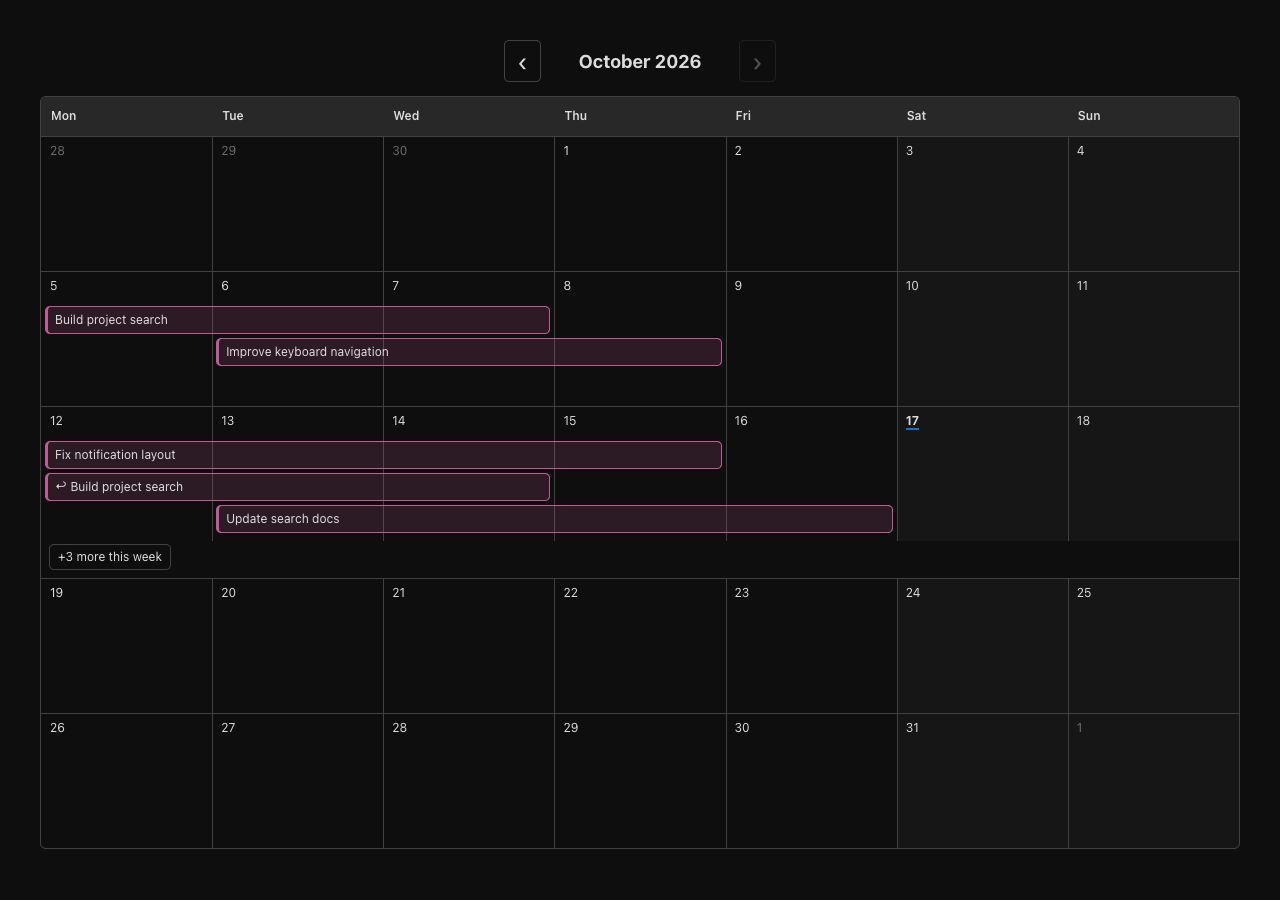
Follow recorded work
Bars show dates touched by recorded Codex turns in your local time zone. Work on consecutive days joins into one bar; full idle days split it. ↩ marks a resumed chat. Select a bar to open Details, then Open chat to continue in Codex.
Move between months
Use Previous month (‹) and Next month (›). Calendar starts at the current month and cannot move into future months. On narrow screens, scroll the calendar horizontally.
Calendar shows recorded work. It does not place future runs or let you drag bars to reschedule them.
Expand a busy week
Weeks show up to three rows of bars. Select +N more this week to reveal the rest, then Show fewer to collapse them.
Tip: hide scheduled chats
Scheduled is enabled by default. Chats that run every day can form long bars as their work joins across consecutive days. Turn Scheduled off to hide chats with active schedules and make other work easier to see.
If work is missing
Check the month and filters, then try Refresh. Calendar depends on available local turn history, so missing records can leave dates absent or incomplete. For tokens and cost estimates, read the Usage guide.